🖥️ UI Configuration
These are the core Home Assistant desktop views in my setup. Click any highlighted area on the screenshots, or use the pills below each preview, to inspect and copy its YAML configuration.
🏠 Main Home View
Home DashboardClick any section on the screenshot to view its YAML configuration
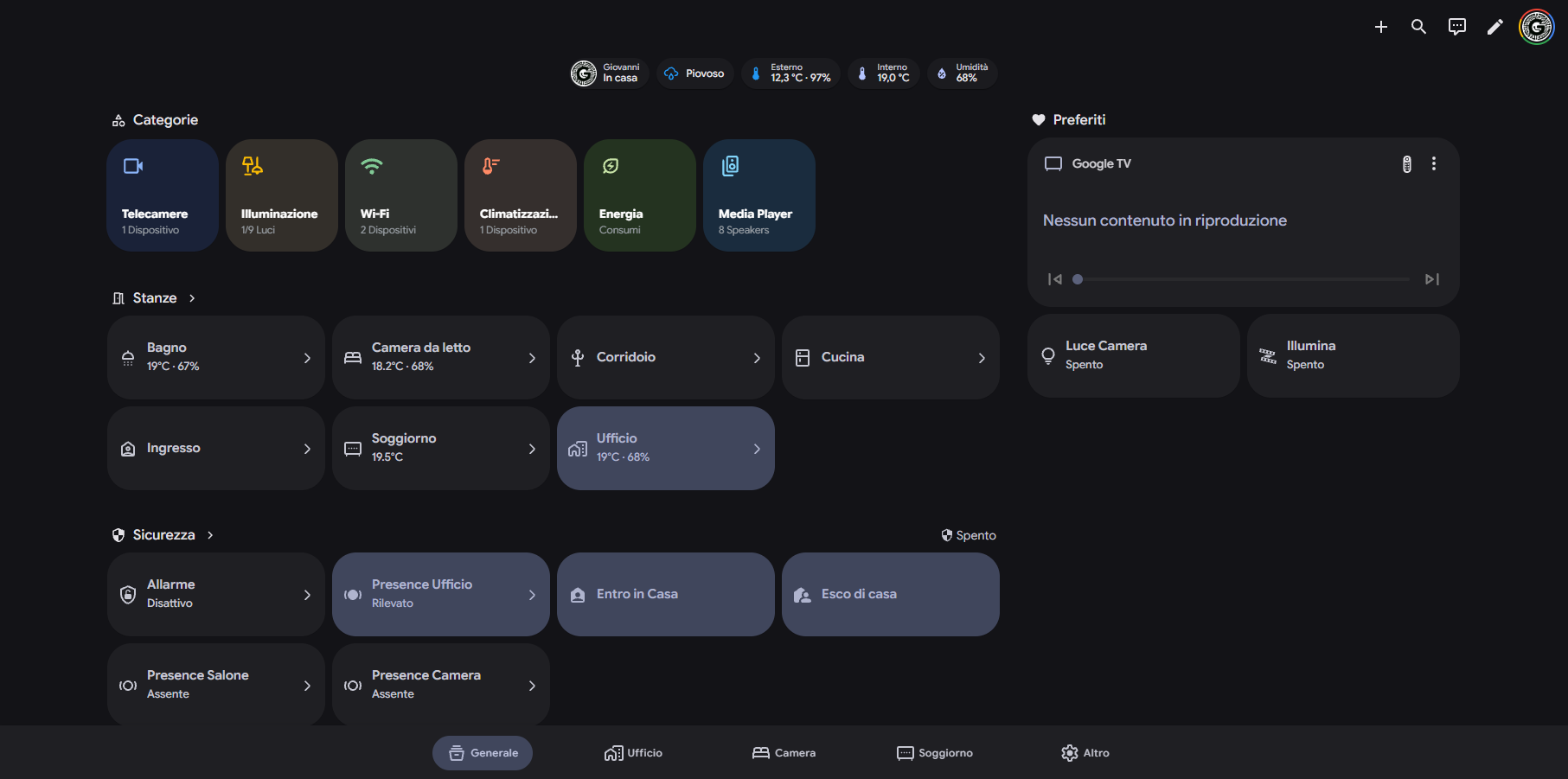
type: custom:material-header
icon: mdi:star-four-points
show_search: true
show_user: true
search_behavior: search
🛏️ Room View
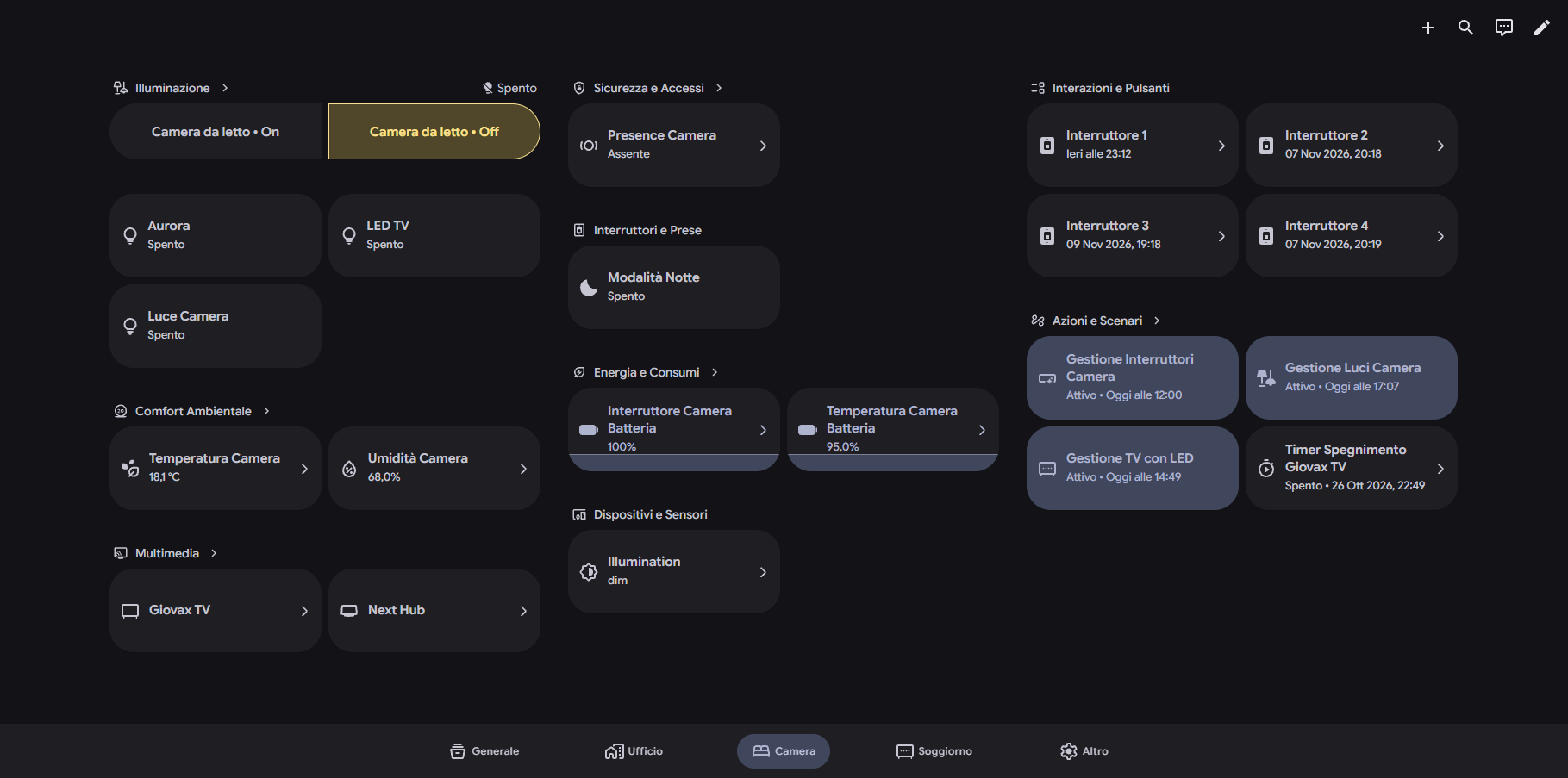
Each room page is organized into 3 grid sections powered by the Material Strategy Card (dedicated documentation for this card is coming soon). Instead of adding entities manually one by one, each block reads the configured area and populates its cards automatically.
- Quick import: create a section in your Home Assistant view, open its Code Editor, replace every
<...>placeholder (such as<area-id>,<primary-light-entity>, and view paths) with your own values, and paste the YAML block. Once imported, you can freely reorder or move cards between sections. - Hide unwanted entities: create a Home Assistant label named
hidden(matchinghidden_label: hiddenin the YAML) and assign it to any entity you do not want displayed in the room. - Automatic empty-state hiding: if a room does not have entities for one of the configured categories (for example, no covers or vacuums in a bedroom), that block is hidden automatically to avoid empty space.
Room DashboardClick any of the 3 columns to copy its Strategy Card grid YAML
Notes
- Create a new section in your Home Assistant Sections view, open its YAML code editor, replace every
<...>placeholder (<area-id>,<primary-light-entity>,<lighting-page-path>,<climate-page-path>,<media-player-page-path>), and paste the snippet. - To exclude specific entities from appearing in a room, create a Home Assistant label named
hidden(matchinghidden_label: hidden) and assign it to those entities. - Once pasted, you can freely drag and reorder cards across sections in the UI editor. Dedicated Material Strategy Card documentation is coming soon.
type: grid
cards:
  - type: custom:material-strategy-card
    section: lights
    lights_config:
      show_section: true
      show_section_title: true
      section_title: Illuminazione
      section_icon: m3r:light-group
      show_bottom_space: true
      section_path: <lighting-page-path>
      show_lights_card: true
      primary_entity: <primary-light-entity>
      hidden_label: hidden
      name_mode: auto
      cards_config:
        show_percentage: true
        show_state: true
    area: <area-id>
  - type: custom:material-strategy-card
    section: cover
    covers_config:
      show_section: true
      show_section_title: true
      section_title: Oscuramento
      section_icon: m3r:window-open
      show_bottom_space: true
      hidden_label: hidden
      name_mode: auto
      cards_config:
        show_percentage: true
        show_state: true
    area: <area-id>
  - type: custom:material-strategy-card
    section: climate
    area: <area-id>
    climate_config:
      show_section: true
      show_section_title: true
      section_title: Comfort Ambientale
      section_icon: m3r:nest-thermostat-e-eu
      show_bottom_space: true
      show_extended_cards: true
      section_path: <climate-page-path>
      hidden_label: hidden
      name_mode: auto
      cards_config: {}
      sensor_card_type: template
      sensor_cards_config:
        show_shavron_icon: true
  - type: custom:material-strategy-card
    section: media
    area: <area-id>
    media_config:
      show_section: true
      show_section_title: true
      section_title: Multimedia
      section_icon: m3r:connected-tv
      show_bottom_space: true
      show_extended_cards_on_play: true
      section_path: <media-player-page-path>
      hidden_label: hidden
      name_mode: auto
      cards_config:
        settings:
          show_name: true
          show_dynamic_icon: true
          show_app_icon: true
          show_cover: true
          show_time: true
          show_cast_volume: true
          show_tv_volume: true
          show_power: true
          show_cast: true
          show_remote: true
          remote_mode: dialog
          show_old_dialog: true