
🛡️ Alarm Dialog
NOTE
✨ Available on 💎 Ultimate Version Only
✨ Overview
The Alarm Dialog provides a comprehensive interface for managing your alarm_control_panel entities. It allows you to arm and disarm the alarm using a keypad, view the status of related security sensors, and even display a live camera feed, creating a centralized security hub.
This dialog offers a secure and intuitive way to control your home security system directly from your Lovelace dashboard.
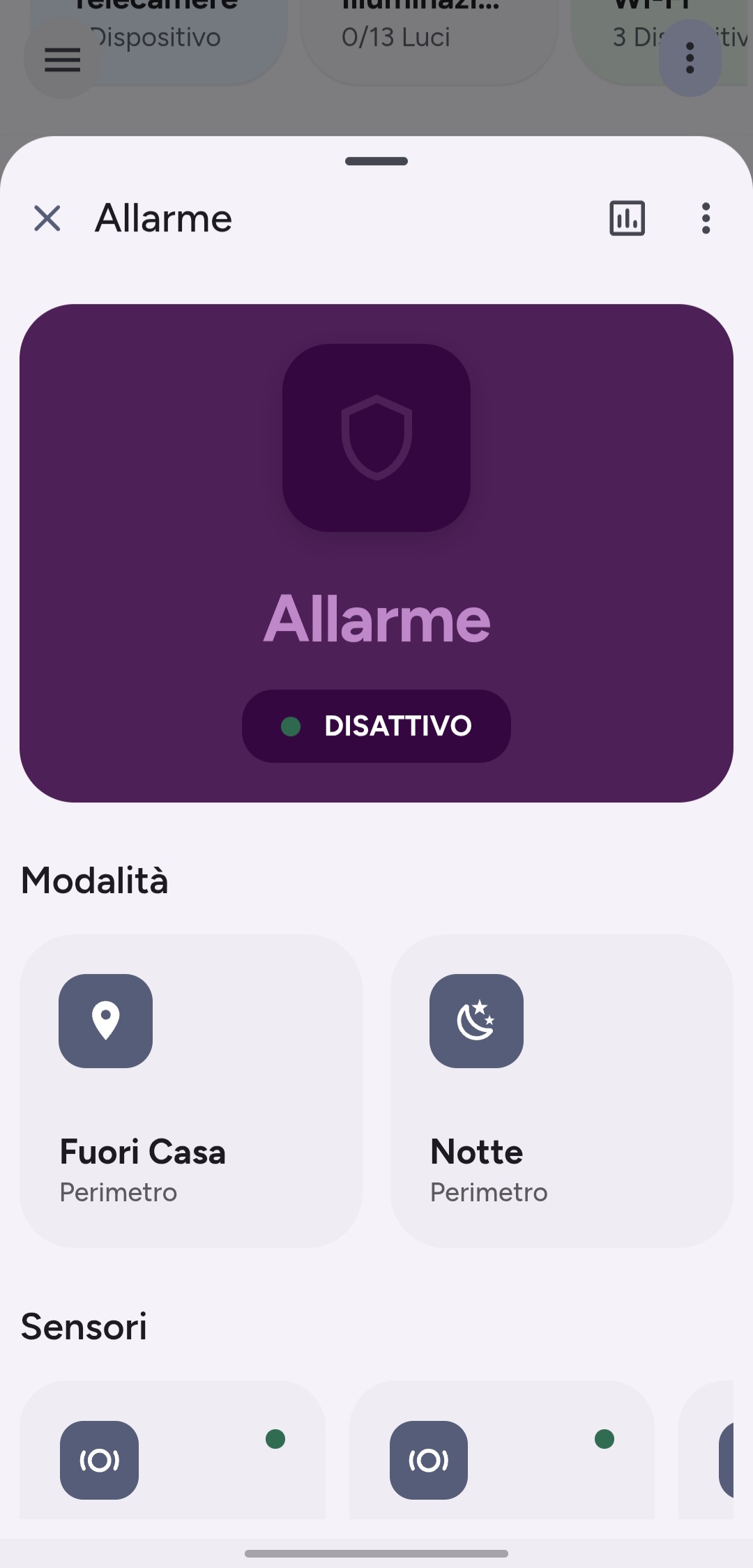
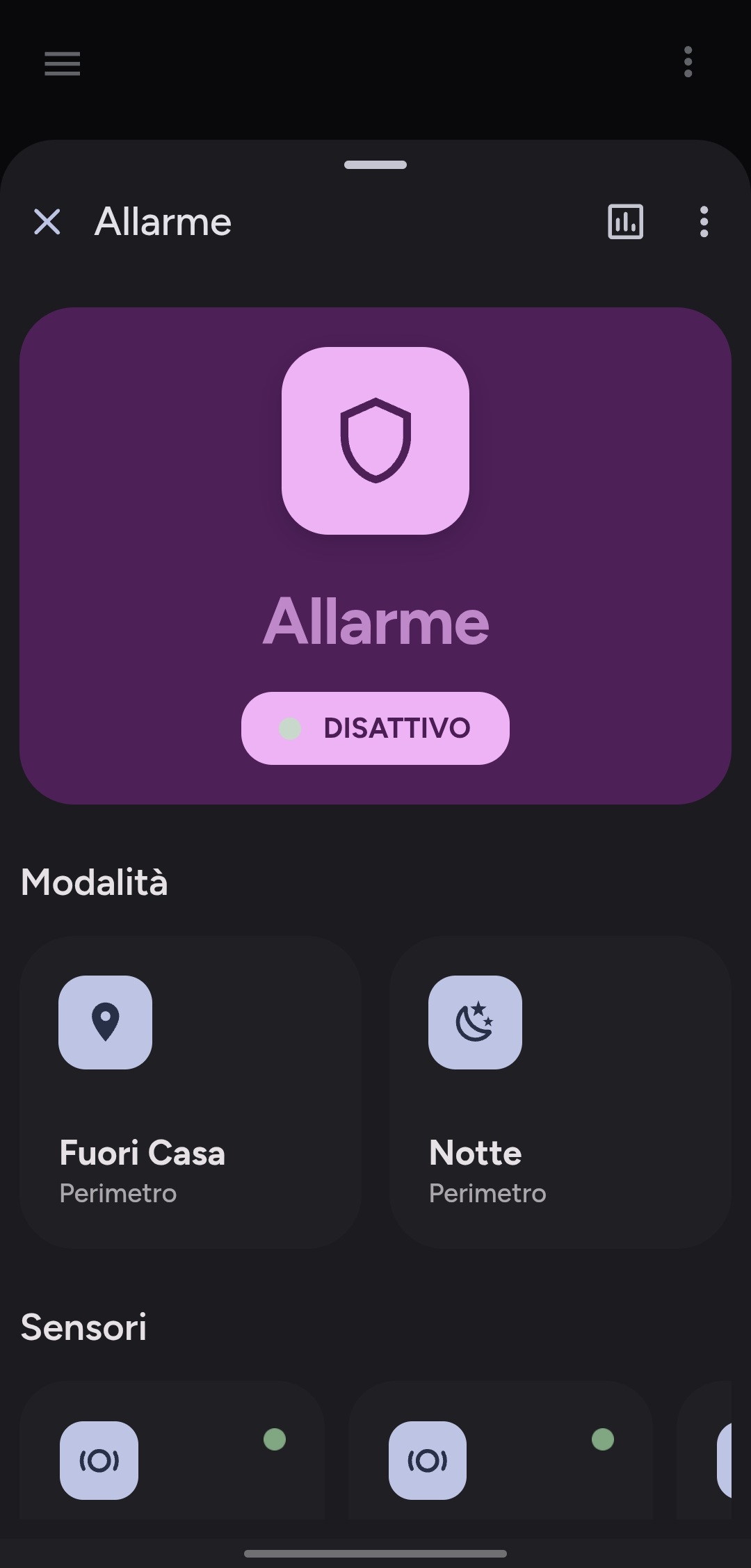
🚨 Built for Alarmo
The Alarm Dialog was born to work with Alarmo. It is natively compatible and designed to leverage all of Alarmo's features, including multiple arming modes, sensor bypass, and real-time state feedback, ensuring a seamless integration out of the box.
✅ How to Open the Alarm Dialog
In the 💎 Ultimate version, the dialog opens automatically. There is no need for manual configuration.
- If you do not define a
tap_actionorhold_action, the dialog will open automatically on tap or hold.
Example: The dialog is automatic
type: custom:material-alarm-card
entity: alarm_control_panel.my_alarm
# No tap_action or hold_action needed!
ℹ️ Action trigger
| Action Type | Card Type | Entity Domain |
|---|---|---|
tap_action | material-alarm-card, material-button-card, material-options-card, material-circle-progress-card | alarm_control_panel |
hold_action | material-alarm-card, material-button-card, material-options-card, material-circle-progress-card | alarm_control_panel |
⚙️ Supported Entity Domains
The Alarm Dialog is designed specifically for entities with the following domain:
| Domain | Description |
|---|---|
alarm_control_panel | Allows full control of the alarm system, including arming, disarming, and triggering. |
The Alarm Dialog is highly customizable through the settings object. You can toggle the keypad, customize labels, or integrate a live camera feed.
⚙️ Settings Options
| Option | Type | Default | Description |
|---|---|---|---|
show_keypad | boolean | true | Show or hide the numeric keypad for entering the alarm code. |
sensor_label | string | Custom title for the list of related security sensors. | |
show_old_dialog | boolean | false | If true, reverts to the default Home Assistant alarm dialog. |
show_camera_on_panel | boolean | false | Enables the camera feed visibility within the alarm dialog. |
show_camera_on_disarmed | boolean | false | If enabled, the camera remains visible even when the alarm is disarmed. |
camera_entity_status | string | The entity used to monitor if the camera is online (e.g., binary_sensor.cam_status). | |
camera_entity_stream | string | The camera entity providing the live stream (e.g., camera.garden). | |
camera_title | string | CameraCustom title displayed above the live camera feed. | |
show_keypad | boolean | true | Whether to show the numeric keypad when the alarm requires a code. 🔢 |
keypad_code | string | (empty) | If provided, the alarm will use this code automatically, bypassing the keypad. ⚡ |
show_keypad_as_dialog | boolean | false | If true, the keypad will appear as an overlay (popup) instead of integrated into the card. 🛡️ |
ℹ️Configuration Example
Below is an example of a full configuration including camera integration and custom sensor labels:YAML
type: custom:material-alarm-card
entity: alarm_control_panel.home_alarm
name: "Home Security"
display_style: "extended"
settings:
  show_keypad: true
  sensor_label: "Security Zones"
  show_camera_on_panel: true
  show_camera_on_disarmed: false
  camera_entity_status: binary_sensor.garden_camera_online
  camera_entity_stream: camera.garden_live
  camera_title: "Garden View"
If show_old_dialog is enabled this dialog would be showed.
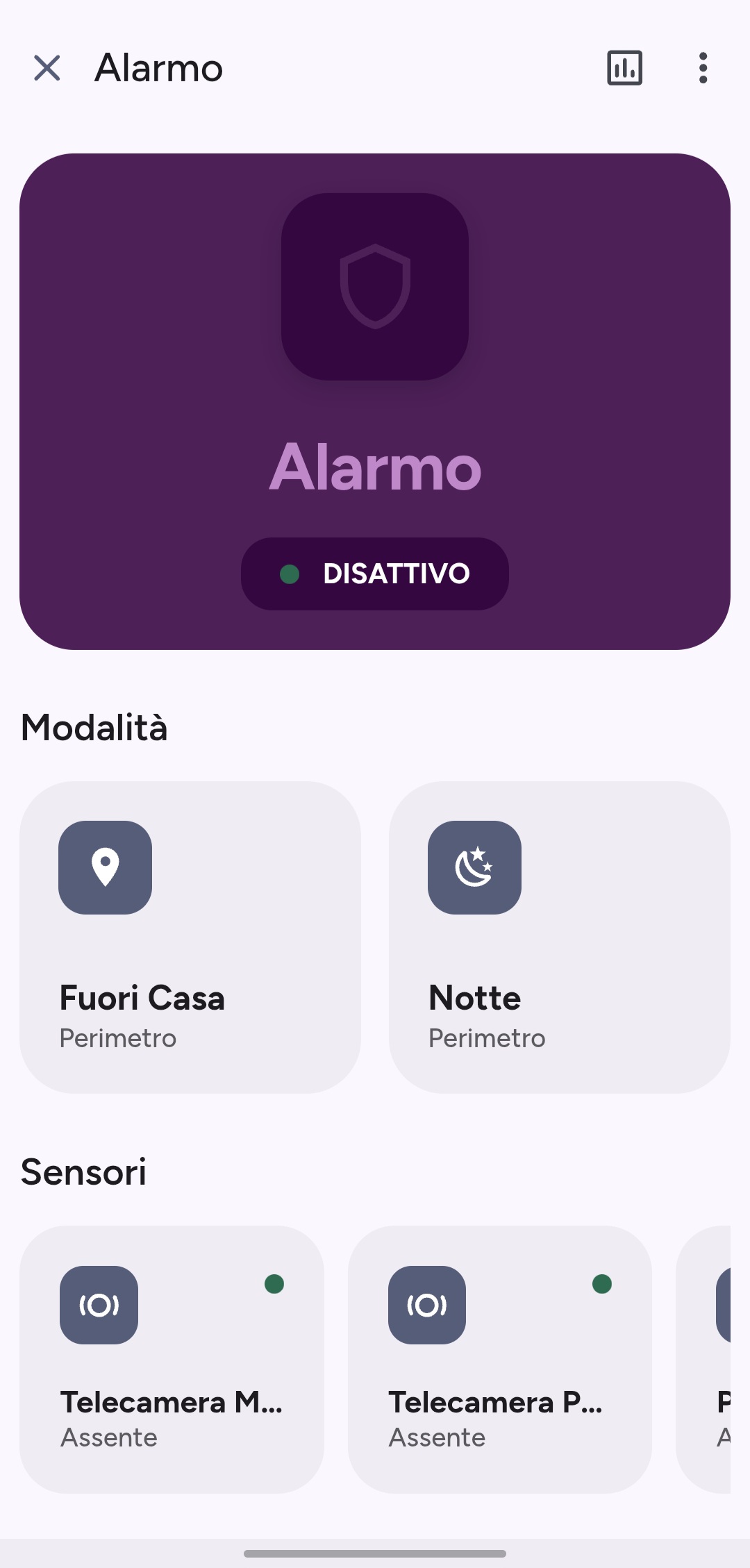
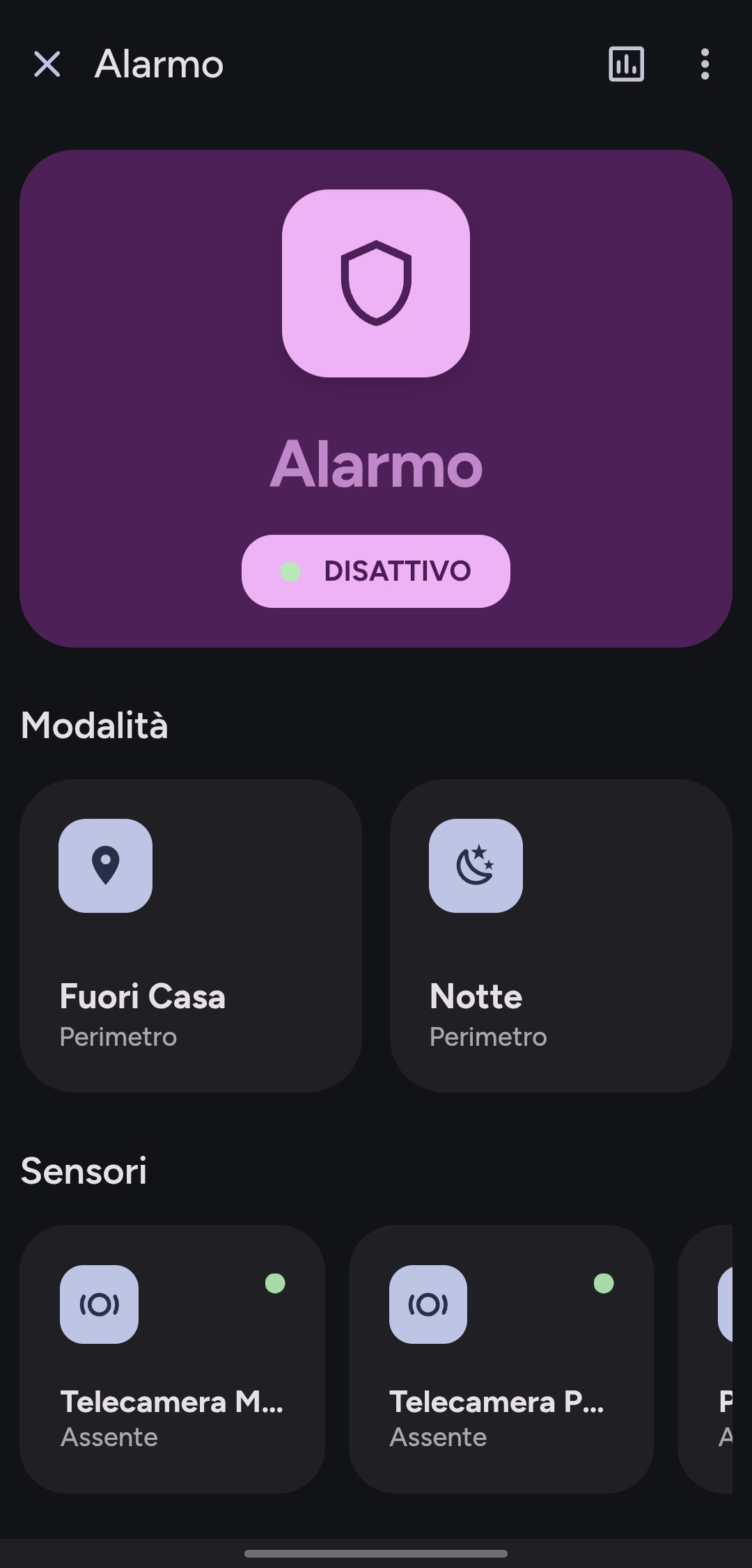
🎨 Dialog Features
| Feature | Description |
|---|---|
| Keypad | A touch-friendly keypad to enter your alarm code for arming and disarming. |
| Arming Options | Dedicated buttons to easily arm the system (e.g., Arm Home, Arm Away). |
| Related Sensors | Displays a list of related security sensors (e.g., door, motion) to quickly check for open zones. |
| Live Camera Feed | Can be configured to show a live stream from a security camera within the dialog. |
| Dynamic Header | Shows the alarm panel's name, area, and current state (e.g., Armed, Disarmed). |
| Dark/Light Theme Support | Automatically adapts to HA theme settings. |
| Responsive Layout | Adopts a fullscreen view on mobile and a centered dialog on desktop. |
💡 Example Use Cases
- Tap an alarm panel card → quickly arm or disarm the system before leaving or going to bed.
- Hold an alarm panel card → open the dialog to check sensor status before arming.
- View a live camera feed when the alarm is triggered to verify the situation.