📺 Material Media Page
NOTE
🆕 Introduced in version 1.6.0
✨ Available on Free and Paid mode
✨ Overview
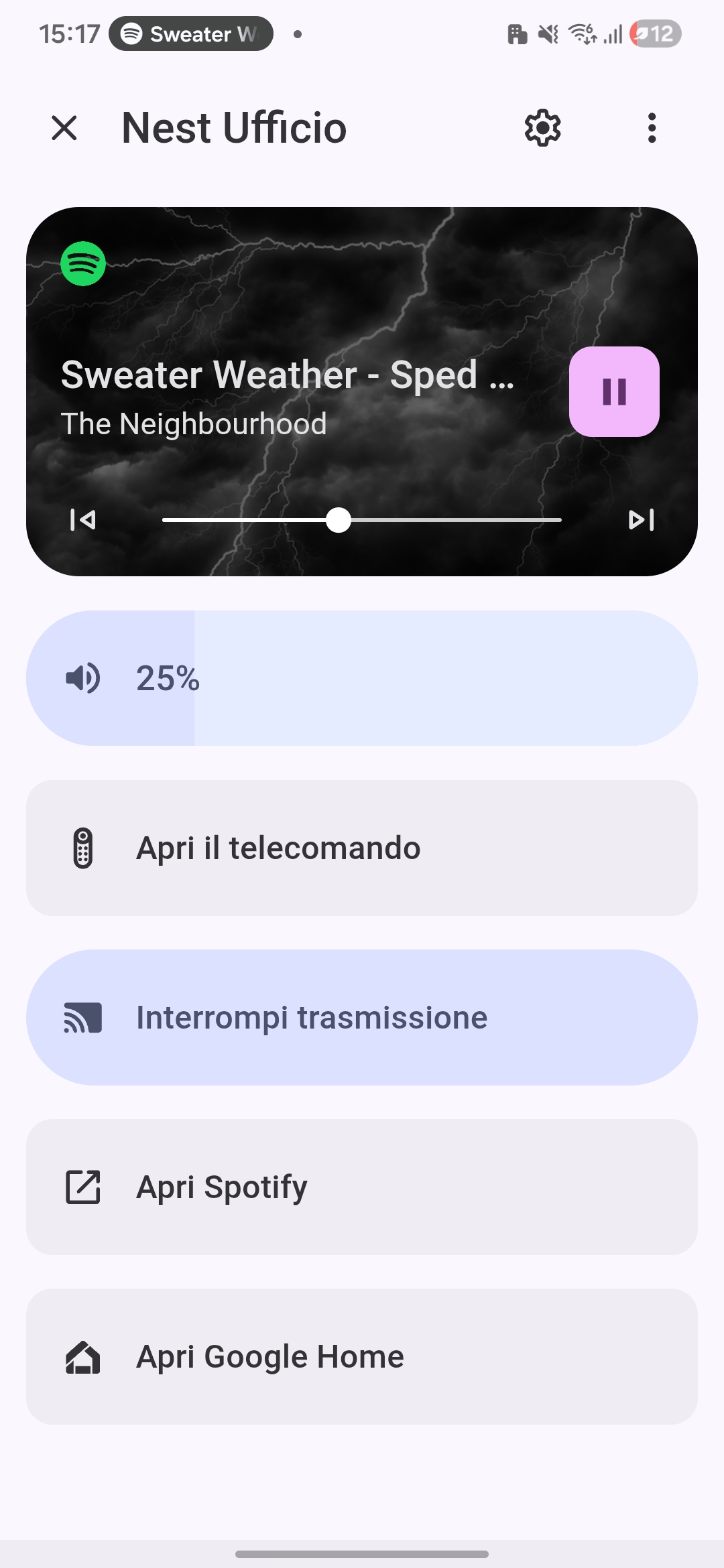
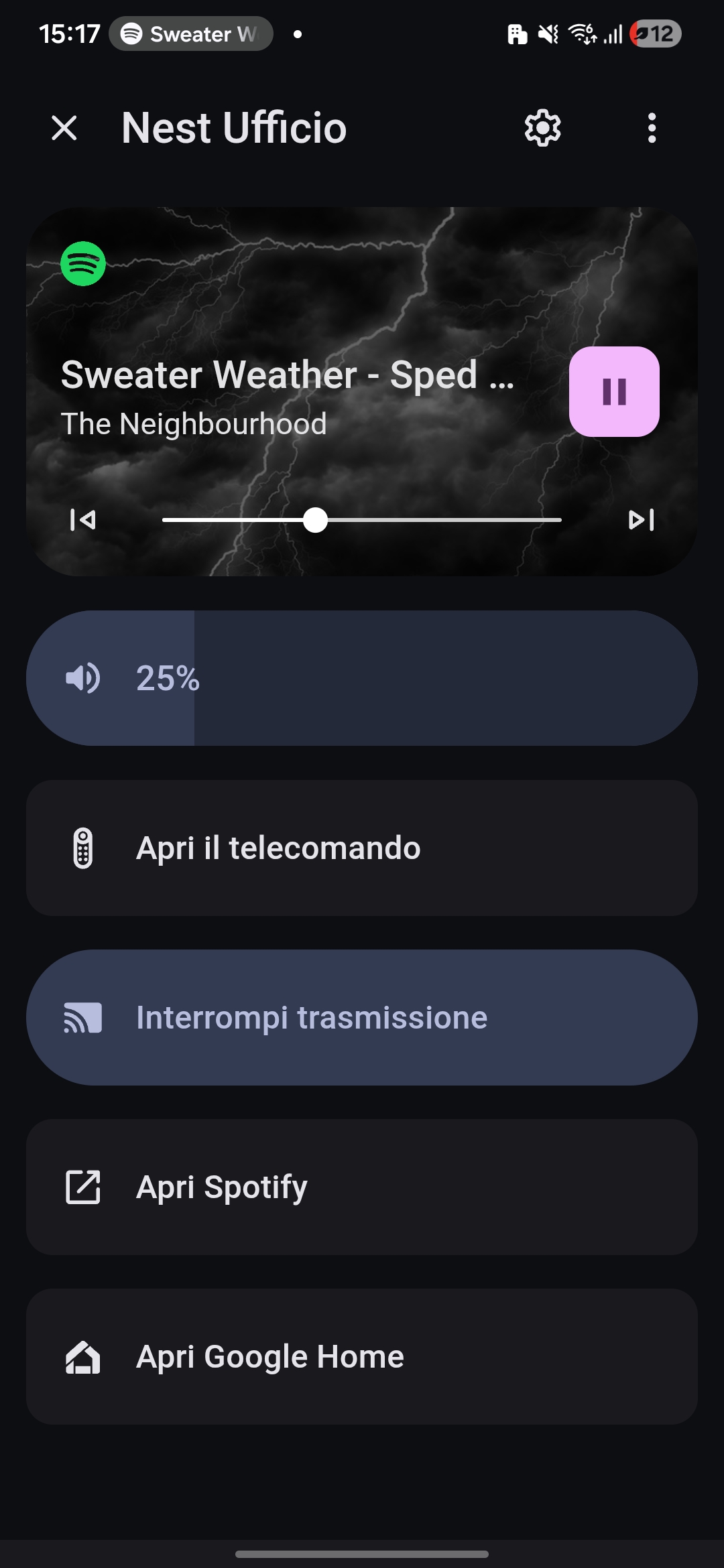
The Material Media allows you to open a full-screen media control panel for your Google Cast devices (Nest Hub, Chromecast, etc.) directly from Lovelace.
It provides media playback controls, volume, and an enhanced UI optimized for both desktop and the Home Assistant mobile app (including swipe-to-close support).
✅ How to Add a Button to Open the Media (Overlay)
To open the media, you can use the material-button-cardwith control_type: media_player.
Example Configuration:
yaml
type: custom:material-button-card
use_default_icon: true
use_default_toggle: true
icon: mdi:google-nest-hub
control_type: media_player
entity: media_player.next_hub
⚙️ Options
use_default_icon: Iftrue, the card will automatically use the default icon for the selected entity.use_default_toggle: Iftrue, the card will show the Material Media Page (Important).icon: (Optional) Override the default icon with a custom one.control_type: media_player: Required to enable overlay support.entity: The target entity (e.g.media_player.next_hub).
🎬 Usage
- Tap the button → the Material Media opens with full media controls.
- Control playback, volume, or switch apps (Spotify, YouTube, etc. if supported).
- Close the overlay: click the close button (❌).