👤 Material Sensor Dialog
NOTE
🆕 Introduced in version 2.0.0
✨ Available on Free and Paid mode
✨ Overview
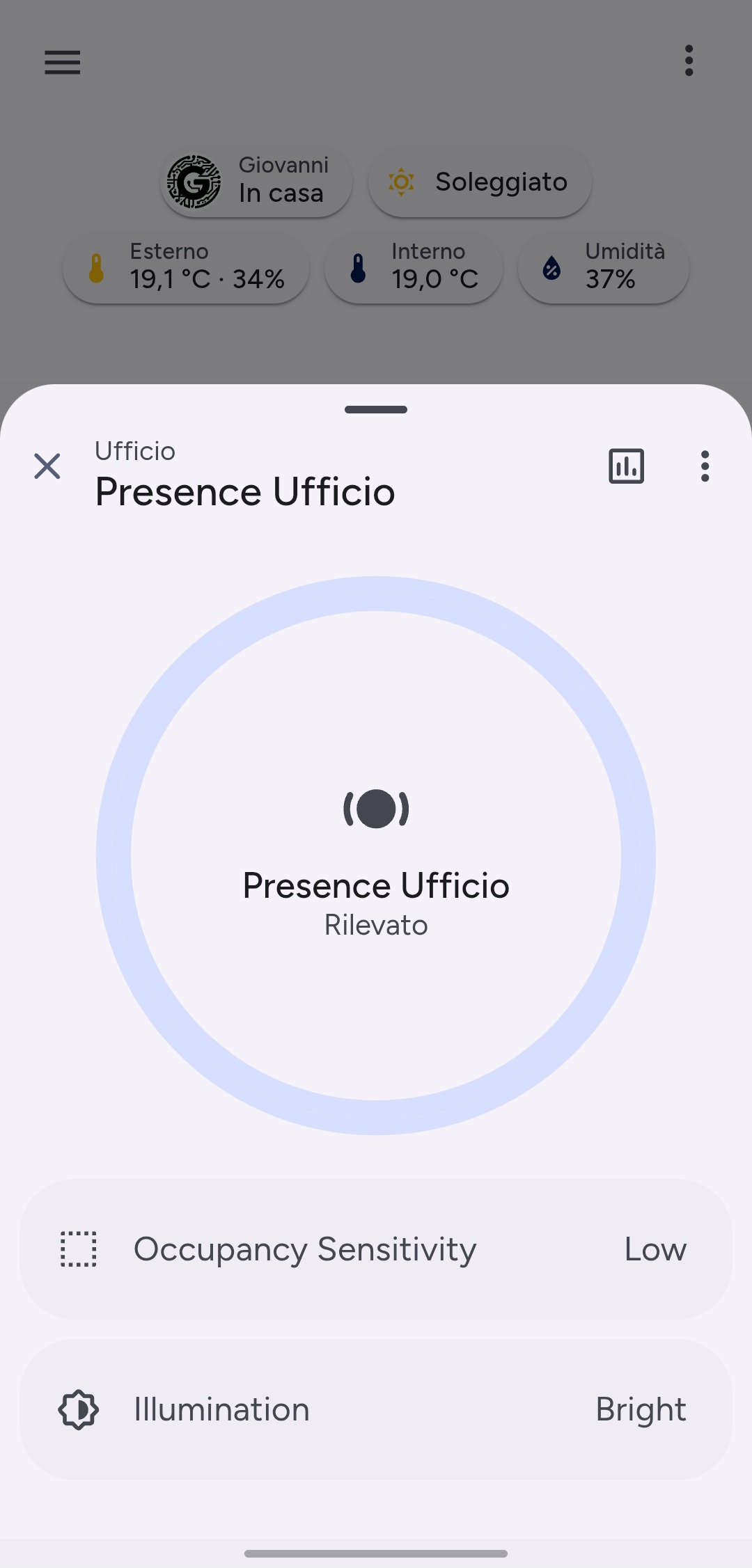
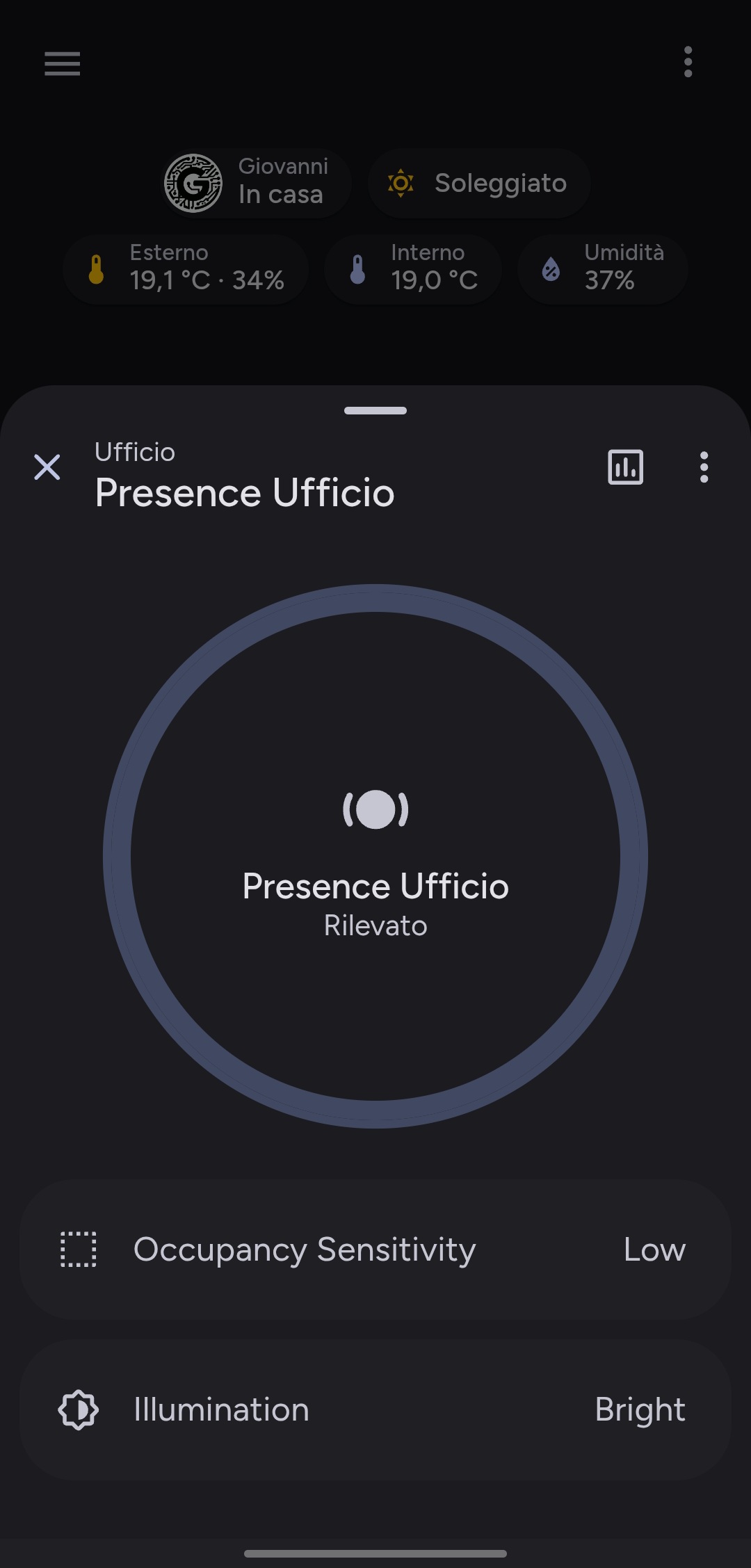
The Material Dialog is a new interactive component that allows you to view detailed information about a sensor device in a modern Material Design popup.
It provides contextual data, related entities, and device information, all inside a responsive dialog optimized for both desktop and mobile (with full-screen mode on phones).
This dialog gives users a fast and elegant way to check sensor states such as temperature, humidity, motion, or door status without leaving the main Lovelace dashboard.
✅ How to Open the Material Dialog
🆓 Free Version
To open the Material Dialog, simply use the material-button-card with the attribute:
use_default_toggle: trueWhen the button is configured with one of the supported sensor types, tapping it will automatically open the Material Dialog with detailed information.
Example Configuration
type: custom:material-button-card
control_type: generic
entity: binary_sensor.motion_livingroom
use_default_icon: true
use_default_toggle: true # <-- Required in the Free version!
When the entity corresponds to a supported sensor (e.g., motion, door, temperature, humidity), the dialog will open automatically upon tap.
ℹ️ Action trigger
| Card Type | Action Type | Sensor |
|---|---|---|
material-button-card | tap_action | door, motion, temperature |
🪄 Pro & Ultimate Version
In the paid versions, automatic actions are the default behavior.
- If you do not define a
tap_actionor thehold_action, thecustom-more-infoaction will be executed on tap. - You do not need to use
use_default_toggle, which is deprecated in these versions.
Example (Pro/Ultimate): more-info is automatic
type: custom:material-button-card
control_type: generic
entity: binary_sensor.motion_livingroom
use_default_icon: true
ℹ️ Action trigger
| Action Type | Card Type | Sensor (By Device Class) |
|---|---|---|
tap_action | material-button-card, material-options-card, material-circle-progress-card | door, motion, temperature, presence, occupancy |
NOTE
🧠 More sensor types may be added in future updates.
⚙️ Supported Device Classes
🆓 Free Version
The Material Dialog is currently compatible with the following device types:
| Device Type | Description |
|---|---|
motion | Motion or presence sensors. Displays active/inactive state with animated feedback. |
door | Door or window contact sensors. Shows open/closed status. |
temperature | Temperature sensors. Displays current temperature and related entities. |
humidity | Humidity sensors. Displays current humidity level and related information. |
🪄 Pro & Ultimate Version
| Device Type | Description |
|---|---|
motion, presence, occupancy | Motion or presence sensors. Displays active/inactive state with animated feedback. |
door | Door or window contact sensors. Shows open/closed status. |
temperature | Temperature sensors. Displays current temperature and related entities. |
humidity | Humidity sensors with progress card. Displays current humidity level and related information. |
problem, safety, smoke, gas, moisture, tamper | Hazard and problem sensors. Displays active alert/emergency states with red M3 alert feedback. |
NOTE
🧠 More device classes may be added in future updates.
🎨 Dialog Features
| Feature | Description |
|---|---|
| Dynamic Header | Shows device name, area, and state. |
| Animated Status Circle | Visual indicator (pulsing border) for active sensors. |
| Alert & Problem Highlights | Automatically applies M3 error colors and pulsing outline for problem/error states. |
| Related Entities Section | Lists all entities associated with the same device (e.g., battery, signal strength). |
| Action Menu | Quick access to “Device Info” and “Related” pages. |
| History Button | Opens Home Assistant’s built-in history panel for the entity. |
| Dark/Light Theme Support | Automatically adapts to HA theme settings. |
| Responsive Layout | Fullscreen modal on mobile devices, centered dialog on desktop. |
🏷️ Customization with Labels
The Material Dialog supports specific Labels to give you full control over what is displayed. By applying labels like Dialog Hidden or Template in the Home Assistant entity settings, you can declutter your interface or fix layout issues for helpers.
TIP
To learn how to hide entities or manage template sensors, visit the Labels Configuration Guide.
💡 Example Use Cases
- Tap a motion sensor → view detection status, last activity, and related entities.
- Tap a temperature sensor → see the current temperature, humidity, and connected devices.
- Tap a door sensor → quickly check if a window or door is open.
⚠️ Notes
- The Material Dialog works only when
use_default_toggle: trueis enabled. (Only in the Free version) - The dialog is automatically managed, no need to specify the type manually.
- If the entity is not one of the supported sensor types, no dialog will open.